Live Tail
Live Tail streams logs into Explore as they arrive, like tail -f across your whole account. It's the mode for watching something happen: a deploy rolling out, a fix taking effect, a request you're about to send.
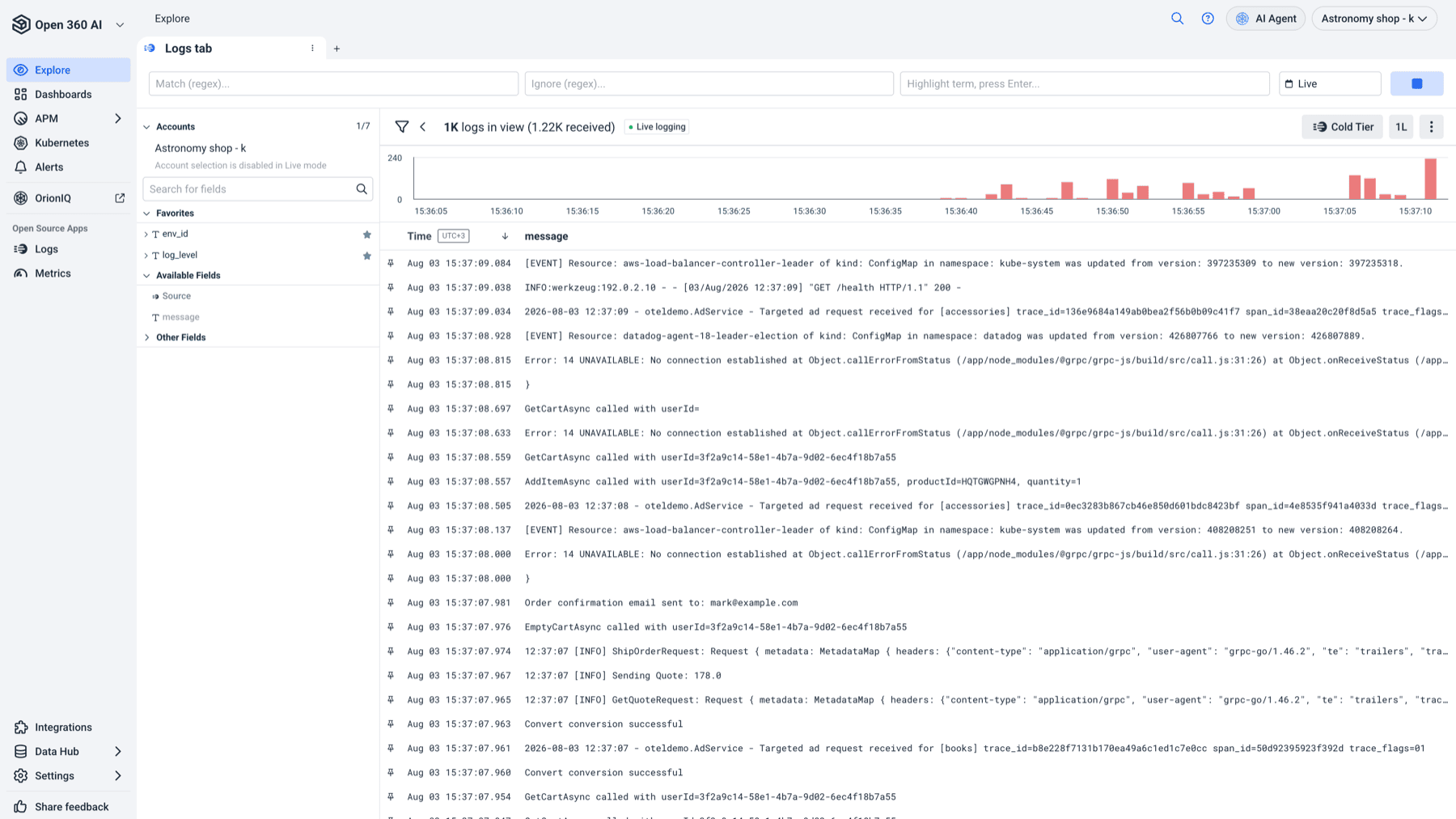
Start and stop the stream
Live Tail is a timeframe, not a separate page. Open the time picker in Explore, select the Live tab, and apply. The log table switches to streaming and the picker reads Live.
The stream follows the account you were already querying. Account selection is disabled while live — to stream a different account, leave live mode, switch account, and go back in.
A counter above the table shows how many logs are in view and how many have been received, so you can tell a quiet system from a stalled one at a glance.
The state is always visible, so you know whether what you're looking at is current:
| State | Meaning |
|---|---|
| Connecting | Opening the stream. |
| Waiting for logs | Connected, nothing has arrived yet. A quiet system looks like this — it isn't an error. |
| Streaming | New logs are appending live. |
| Stream paused | You stopped it. The view is frozen at that point. |
| Live · viewing earlier | Still streaming, but you've scrolled back, so you aren't looking at the newest rows. |
Use Stop stream to freeze the view and Resume stream to pick it back up. When you've scrolled away from the bottom, Jump to newest returns you to the live edge and resumes following.
Filter the stream
Two regex fields narrow what appears, and they apply to the live stream rather than re-running a search:
- Match (regex) — only show lines matching this pattern.
- Ignore (regex) — drop lines matching this pattern.
Both validate as you type; an invalid pattern is reported as Invalid regular expression rather than silently matching nothing.
This is the difference between watching a deploy and watching a deploy for your service. Ignore is often the more useful of the two — one noisy health-check line can hide everything you care about.
Highlight terms
Type a term into the highlight field and press Enter. Each term gets its own color, so several can be tracked at once — for example a request ID, an error string, and a hostname, each visually distinct as they scroll past.
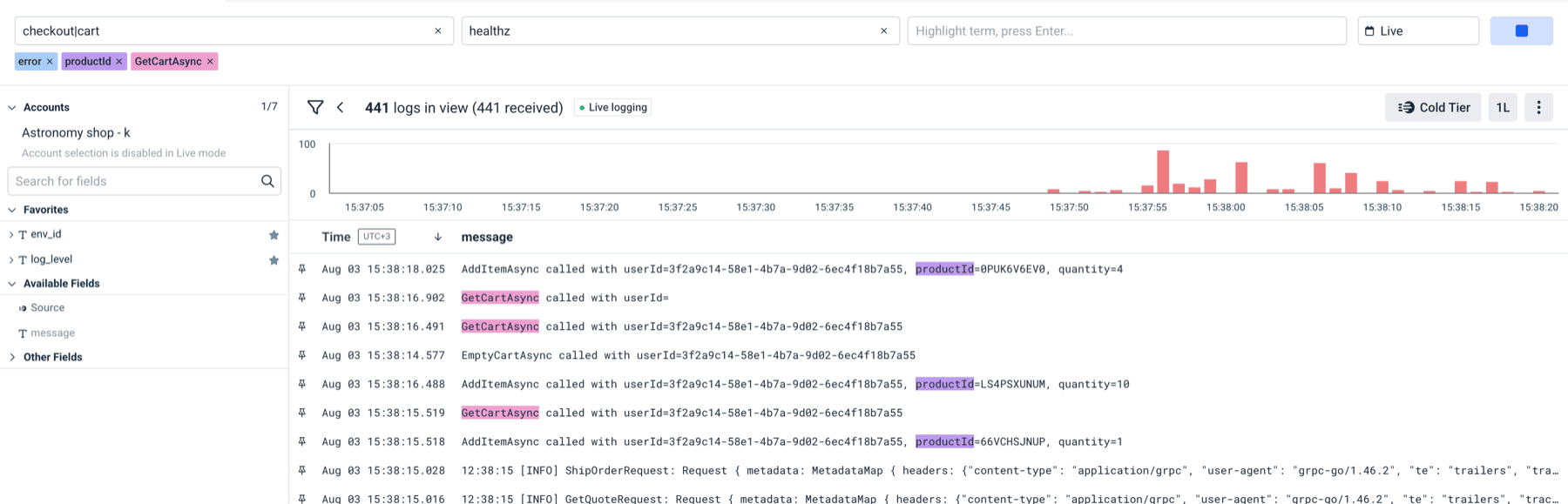
Highlights only change appearance; they never hide rows. Use them to spot things in a stream you still want to see in full, and use the regex fields when you want the noise gone.
Keep rows you need
A live stream discards older logs to stay fast. When that starts happening you'll see Older logs discarded. Pause live or pin rows you want to keep.
Two ways to hold onto something:
- Pin a row to keep it in view as the stream moves. A pinned row that's about to be dropped warns you first: Anchored row will be discarded soon.
- Stop the stream, which freezes everything currently loaded.
If you find something important, pin or pause it before you go looking for context. The stream will not wait.
Filters persist in the URL
The include regex, exclude regex, and highlight terms all live in the URL, so a filtered live view can be shared or reopened with the same setup — handy during an incident when several people need to watch the same slice.
Related
- Intro to Explore
- Log Patterns — what's flooding the stream in the first place