AI Runs
An AI agent rarely fails loudly. It answers, sounds confident, and the answer is wrong because a tool call failed three steps earlier, or a slow model call ran out the clock. AI Observability shows you each run of your agent or LLM application, step by step, so you can see what it was asked, what it called, what came back, and where the time and tokens went.
A run is one request to your agent, from the user's message to the final answer. Each run is a trace. Its steps are the LLM calls, tool calls, and tasks inside it. Because the run is an ordinary trace, the services your agent calls appear in the same timeline. When a run goes wrong because of a backend service, you see that service fail inside the run.
AI Observability is in early access, and any account can request it.
Request accessBefore you begin
- Send traces from your application with OpenLLMetry. Follow the OpenLLMetry guide. A trace counts as a run when its root step is an OpenLLMetry workflow.
- Choose a tracing account. AI Observability reads runs from your tracing accounts only.
Until the first runs arrive, the page shows a setup screen that links to the shipping guide.
Find runs
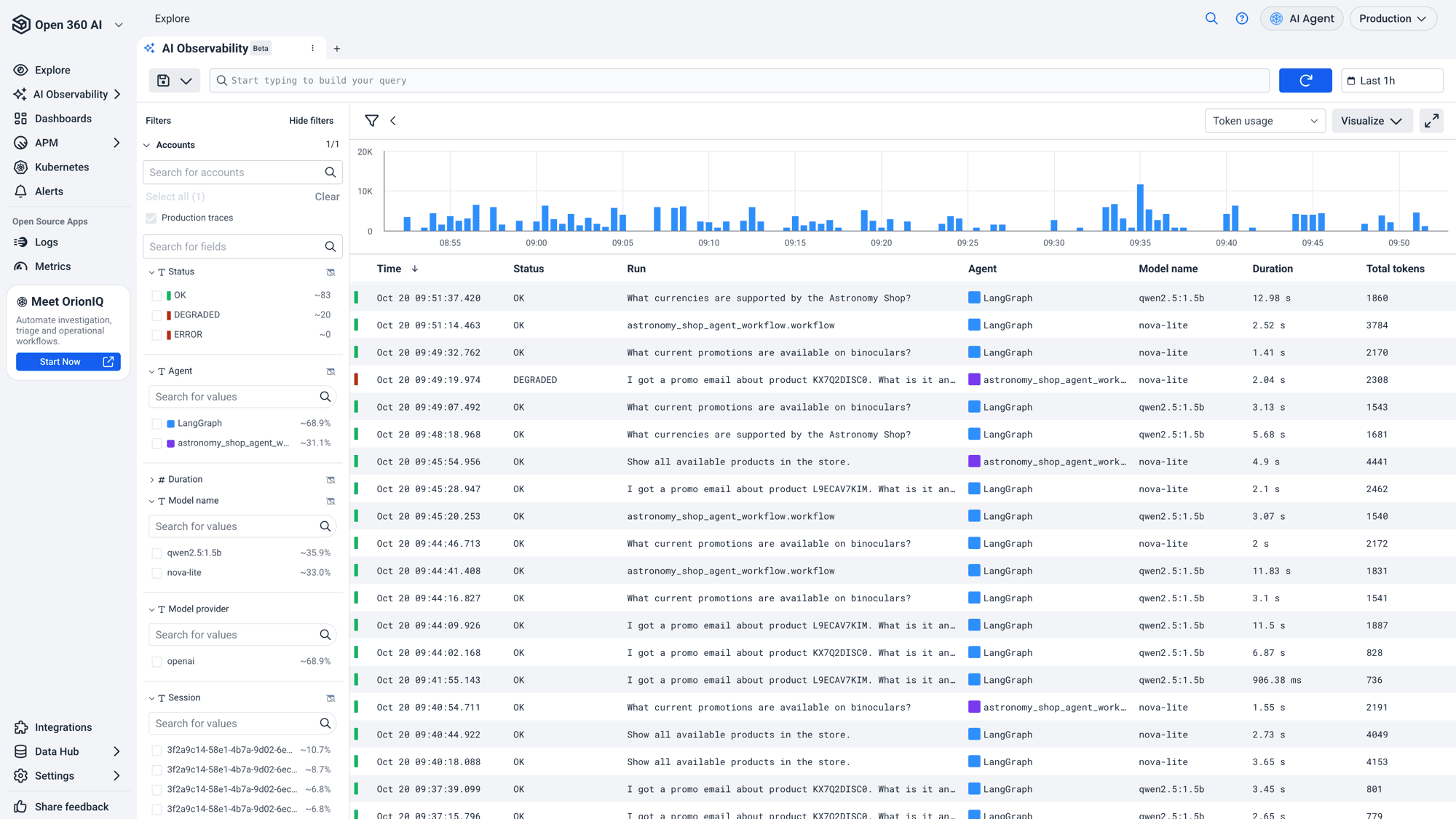
Go to AI Observability in the left navigation. The page opens on the runs from your selected tracing accounts in the chosen time range, newest first.
- Search. Type in the search bar to build a query, or write Lucene. Select the refresh button to run it.
- Filter. The filter pane lists the run fields with their top values and counts. Select a value to keep only runs that match, or exclude it. Use Duration to set a numeric range.
- Graph. The graph above the table plots Token usage, Run count, or Latency (at a percentile you choose) over time. Open Visualize to group the graph by a field, such as agent or model, or to change the time interval. Select a series to filter the table in or out by it.
- Save. Save the search to come back to the same query, filters, and columns later.
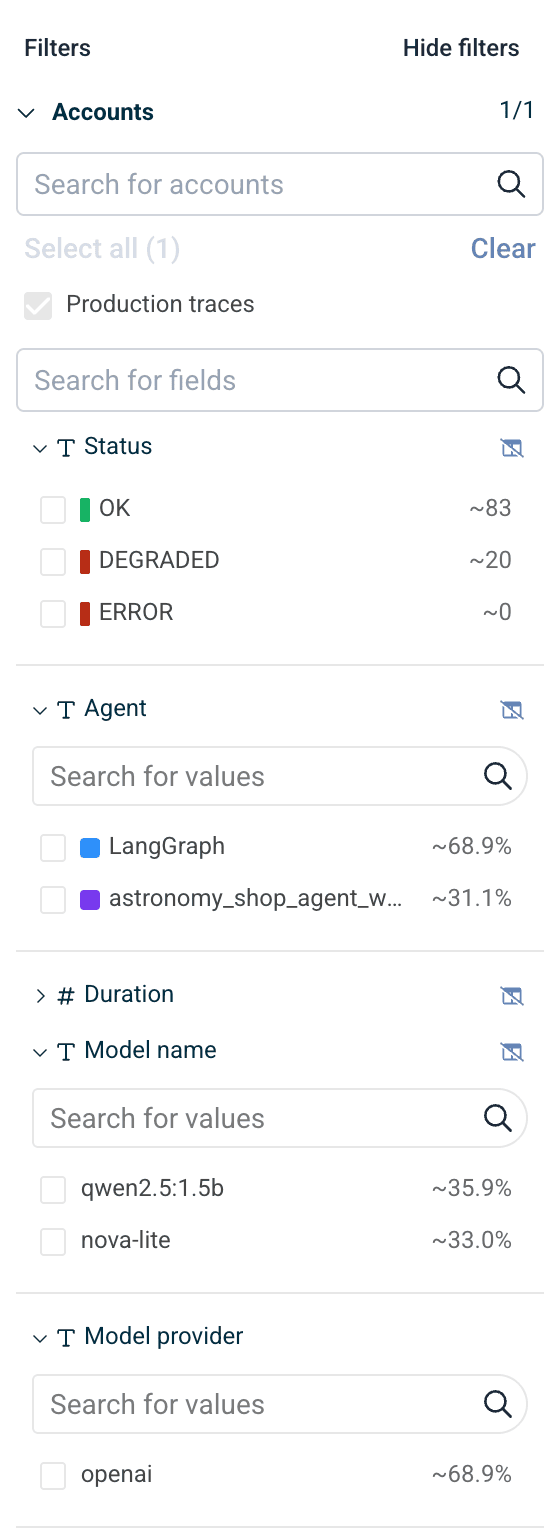
Filtering on Status is the quickest way to start an investigation. Select DEGRADED or ERROR to see only the runs that went wrong.
Runs table
| Column | What it shows |
|---|---|
| Time | When the run started. |
| Status | OK, DEGRADED, or ERROR. See Run status. |
| Run | The user's message that started the run, or the workflow name when there's no message. |
| Agent | The agent or workflow that handled the run (traceloop.workflow.name). |
| Model name | The model the run called (gen_ai.request.model). |
| Duration | End-to-end time of the run. |
| Total tokens | Input plus output tokens across all the run's steps (gen_ai.usage.total_tokens). Empty when your instrumentation doesn't report token usage. |
| Steps | How many steps the run took. |
| Session | The conversation the run belongs to (traceloop.association.properties.thread_id). Empty unless you set a session ID. See Group runs into sessions. |
Select a column header to sort by it, and use the column settings to add or remove fields.
Run status
| Status | Meaning |
|---|---|
| OK | No step in the run reported an error. |
| DEGRADED | The run finished, but one of its steps failed, such as a tool call or a request to a backend service. The agent recovered and answered anyway, which is exactly when an answer is most likely to be wrong. |
| ERROR | The run itself failed. |
Read a run
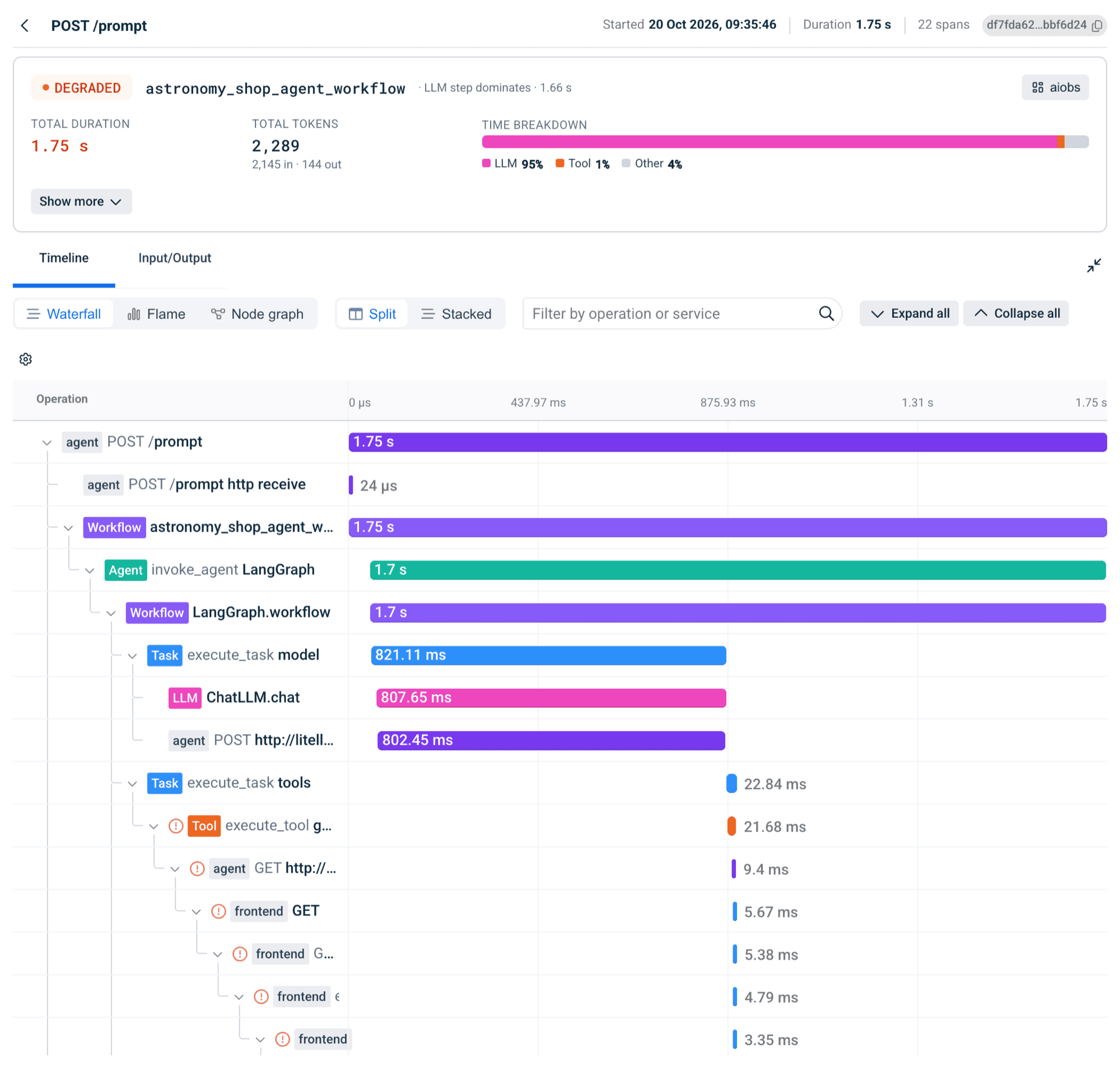
Select a run to open it. The run opens in a panel next to the table, and the URL updates, so you can share a link to it.
Summary
The top of the panel answers "what happened" before you read any steps:
- Status and the agent's name. Next to them is a short insight on where the time went, such as which kind of step dominated.
- Total duration, and total tokens split into input and output.
- Time breakdown, which shows how much of the run was spent in LLM calls, tool calls, retrieval, and everything else.
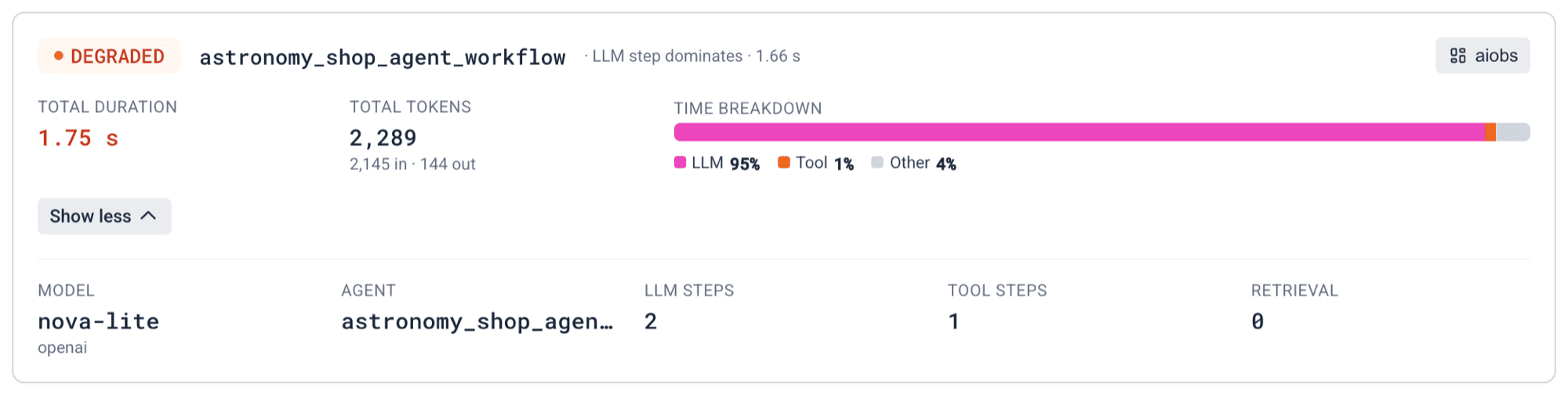
Select Show more for the model and provider, the agent, and how many LLM, tool, and retrieval steps the run made.
Timeline
The Timeline tab lays out every step of the run, including the calls your agent made to other services. Each step is labelled by kind (Workflow, Agent, Task, LLM, Tool), and steps that failed are marked with an error icon. Follow the marked steps down the tree to find the first one that failed.
Switch between Waterfall, Flame, and Node graph views, filter the timeline by operation or service, and expand or collapse the tree.
Input/Output
The Input/Output tab shows the run as a conversation: the user's message, each tool call with its arguments, each tool result, and the assistant's replies, in order.
This is where you see a failure in plain language. In the example below, the tool call failed with a server error, and the agent passed that failure on to the user as its answer.
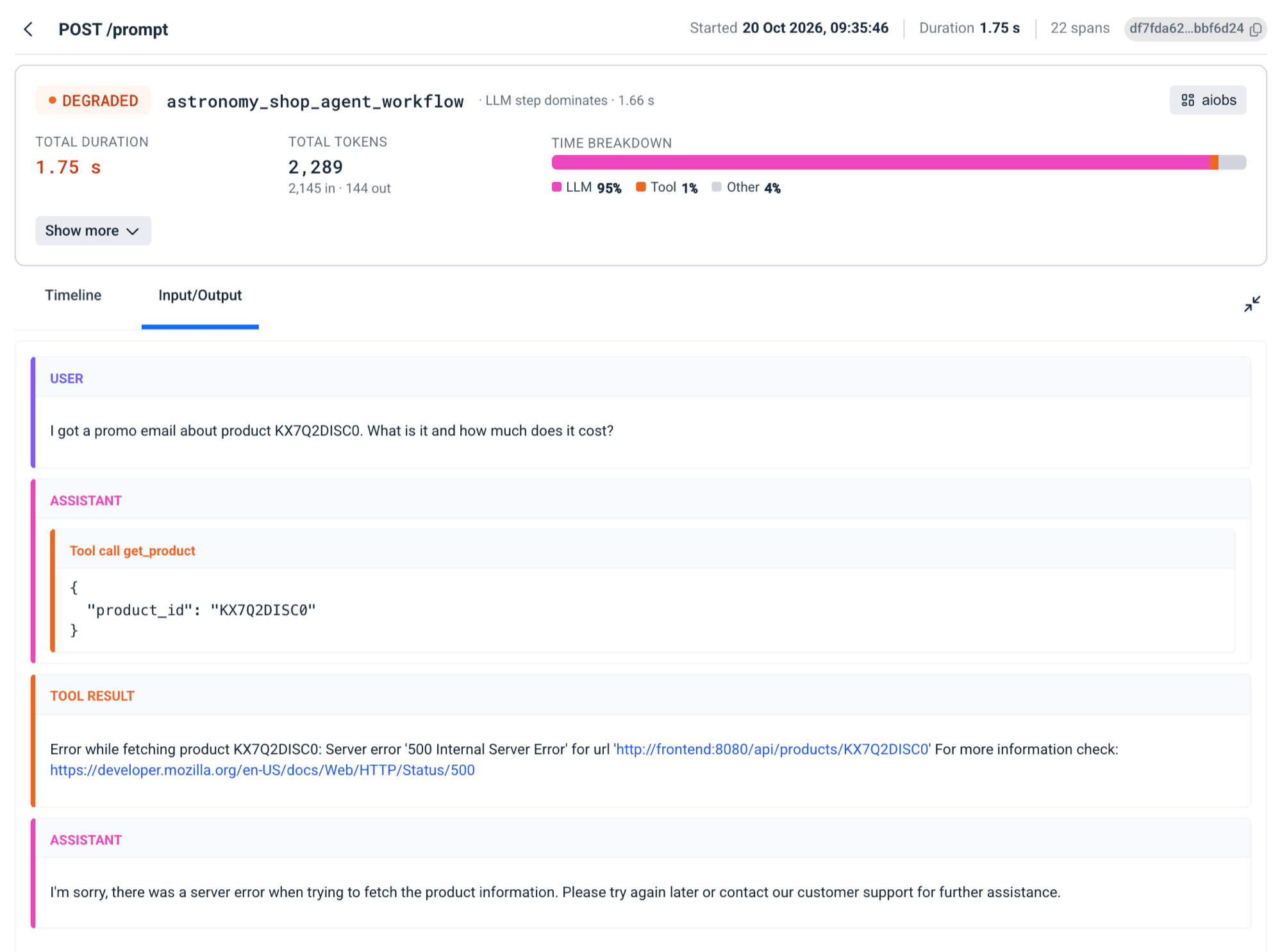
Prompts and responses appear only if your instrumentation records them. See the content setting in the OpenLLMetry guide.
Step details
Select any step in the timeline to open its details: service, duration, offset from the start of the run, and self time, followed by all of its attributes grouped by topic. For an LLM step, the groups include the model and provider, input and output tokens, and the messages sent and received.
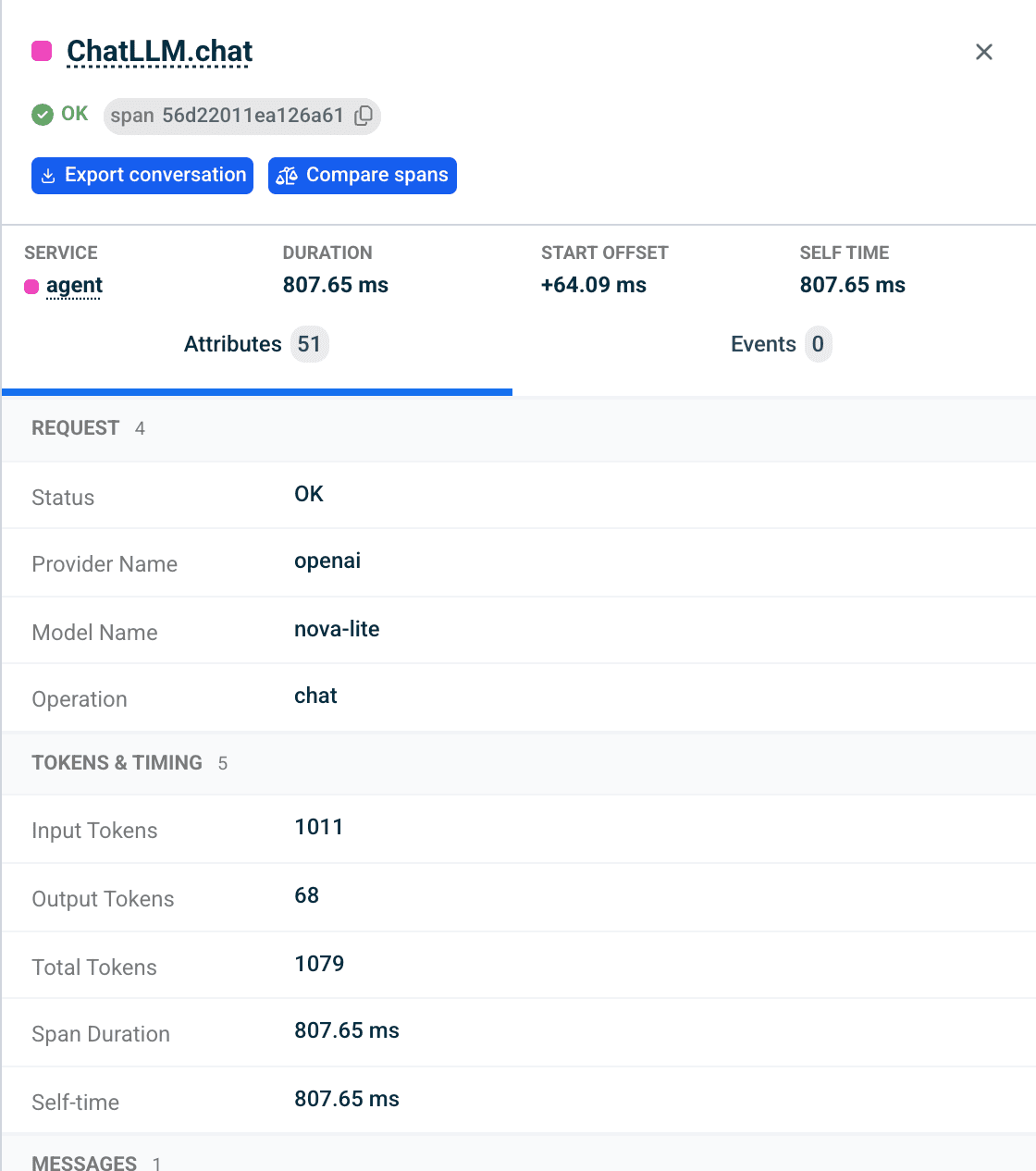
Two actions sit at the top of the step:
- Export conversation downloads the step's conversation as a Markdown file, ready to attach to a ticket or share with the team that owns the agent. It appears on workflow and LLM steps.
- Compare spans opens Compare Spans scoped to this step's service and operation. It compares the operation's failed or slow occurrences with its healthy ones, and ranks the attributes that set them apart. Use it to tell a one-off failure from a pattern. See Compare Spans.
Group runs into sessions
A chat with your agent usually takes several runs, one per message. To see all the runs of one conversation together, set the OpenLLMetry association property thread_id to your conversation ID. The value appears in the Session column and filter, so you can filter on a session to read the whole conversation in order. See the optional settings in the OpenLLMetry guide.
Troubleshooting
I don't see AI Observability in the navigation. It isn't turned on for your account yet. Request access.
The page shows the setup screen. No runs arrived in the selected accounts and time range. Check that the right tracing account is selected, widen the time range, and confirm your application sends traces as described in the OpenLLMetry guide.
Total tokens is empty. Your instrumentation doesn't report gen_ai.usage.total_tokens for the run's steps. AI Observability shows only the token counts your application reports, and doesn't estimate them.
A run is OK but the answer was wrong. A tool may have caught its own error and returned it as text, so no step was marked as failed. Read the run's Input/Output tab to see the tool results the agent received.