Create an Agent
OrionIQ agents are AI-powered tasks that analyze your observability data and generate reports based on the instructions you provide. You can create an agent using natural language, configure how and when it runs, and set up notifications for its results.
To create a new agent, navigate to OrionIQ > Create New Agent in the left navigation menu.
Build your agent
The Create tab provides an interactive Agent Builder where you describe what your agent should do in natural language. Be specific about the signals the agent should look for, the scope of data it should analyze, and the expected output.
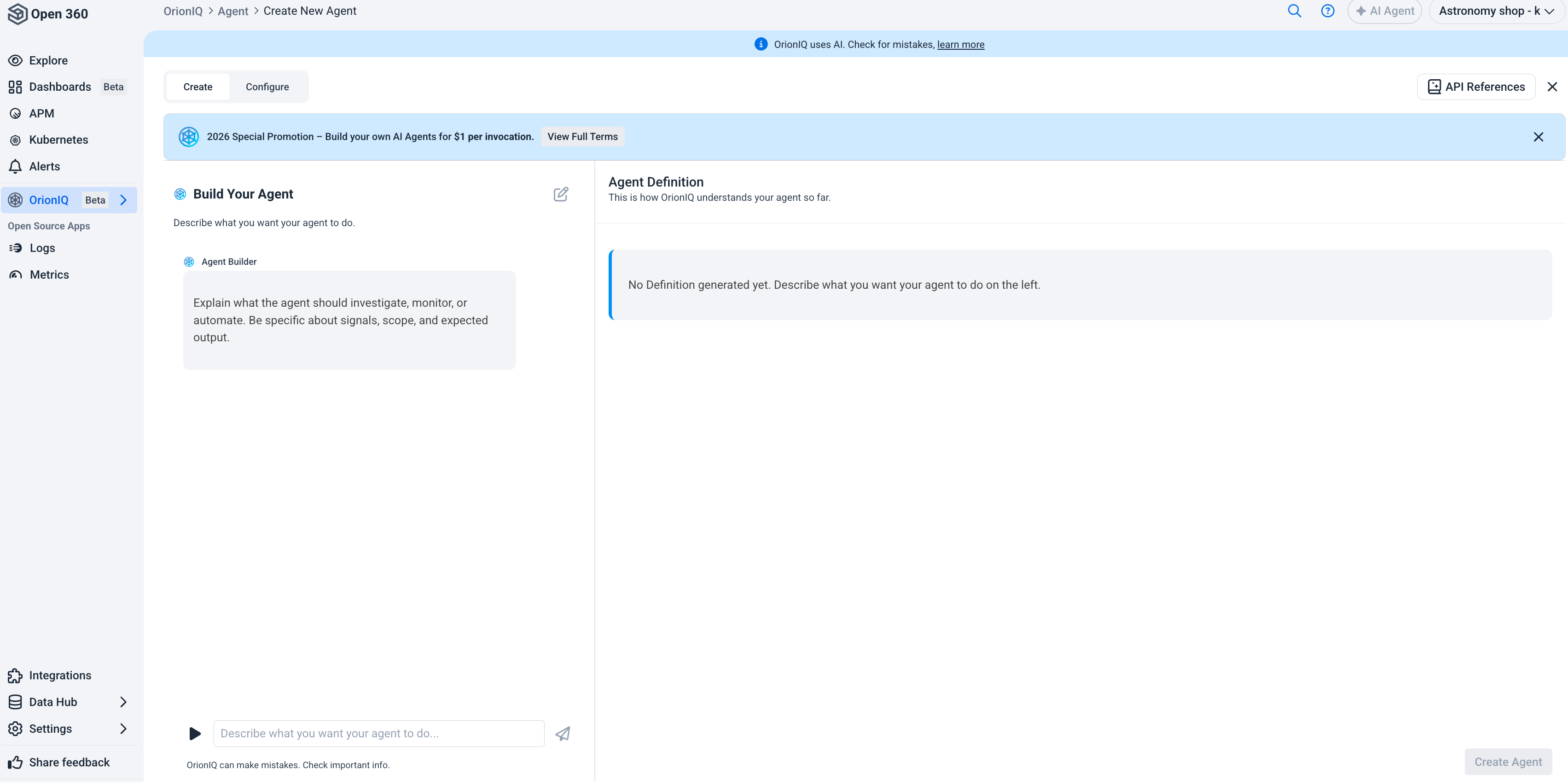
For example:
- "Search through logs to find and extract email addresses. Identify patterns, frequency, and context in which email addresses appear in the logs."
- "Create an agent that detects unusually large log messages."
- "Find the top errors across all services and generate a weekly summary report."
As you provide instructions, OrionIQ generates an Agent Definition on the right side of the screen. The Agent Definition is a structured specification that represents how OrionIQ will interpret and execute your instructions. You can continue refining your instructions by adding more detail in the chat, and the definition updates in real time.
You can add additional instructions at any time to expand the scope of your agent. For example, after creating a base agent, you might ask it to also check which hour of the day produces the largest logs.
Configure the agent
Switch to the Configure tab to set the agent's properties and behavior.
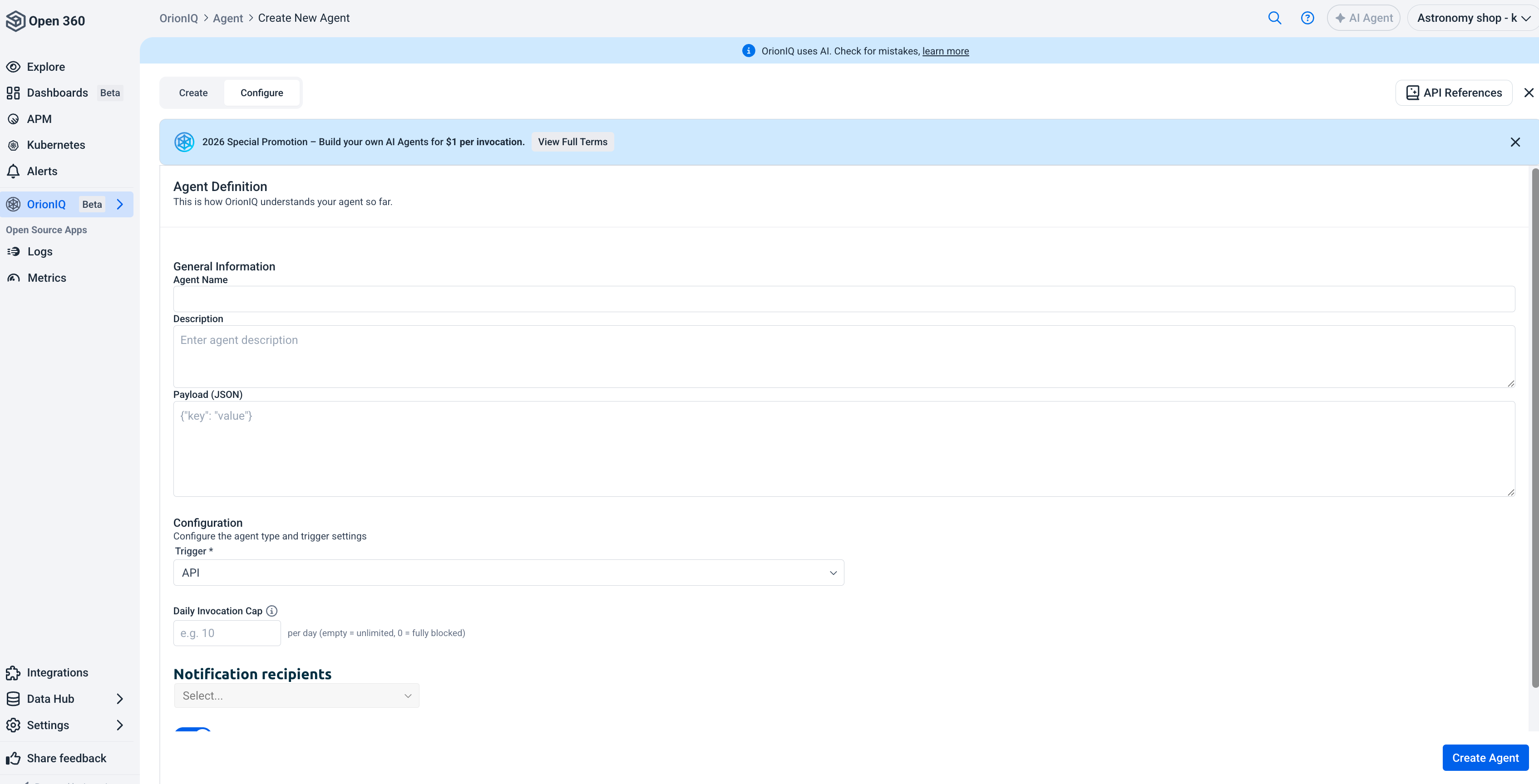
General information
| Field | Description |
|---|---|
| Agent Name | A descriptive name for your agent. |
| Description | A brief explanation of what the agent does. |
| Payload (JSON) | Optional JSON payload to pass additional parameters to the agent. |
Trigger
Choose how the agent will run by selecting a trigger type:
| Trigger | Description |
|---|---|
| API | The agent runs when called via the OrionIQ API. Use this for on-demand or externally triggered invocations. |
| Scheduled | The agent runs automatically at defined intervals (for example, every 3 hours or once a day). |
| Deployment | The agent runs automatically when a deployment event is detected. |
| Alert | The agent runs automatically when a Logz.io alert is triggered. |
Daily invocation cap
Each agent invocation incurs a cost. You can set a maximum number of invocations per day to control your usage budget. Leave this field empty for unlimited invocations, or set it to 0 to fully block the agent from running.
Notification recipients
Configure where agent results are sent after each invocation. You can select from:
- Email addresses of team members.
- Pre-configured notification endpoints such as Slack channels, Microsoft Teams webhooks, or custom API endpoints.
Activation
Use the Active toggle to enable or disable the agent. When disabled, the agent will not run regardless of its trigger configuration.
Finalize and create
Once you've reviewed the agent definition and configured the settings, click Create Agent. The agent becomes available in the Agents Hub where you can monitor its invocations and manage its settings.
You can edit an agent's instructions, trigger, and notification settings at any time from the Agents Hub.