Agents Hub
The Agents Hub is the central place to manage and monitor all of your OrionIQ agents. From here you can view agent details, track invocation history, review results, and control agent activation.
To open the Agents Hub, navigate to OrionIQ > Agents Hub in the left navigation menu.
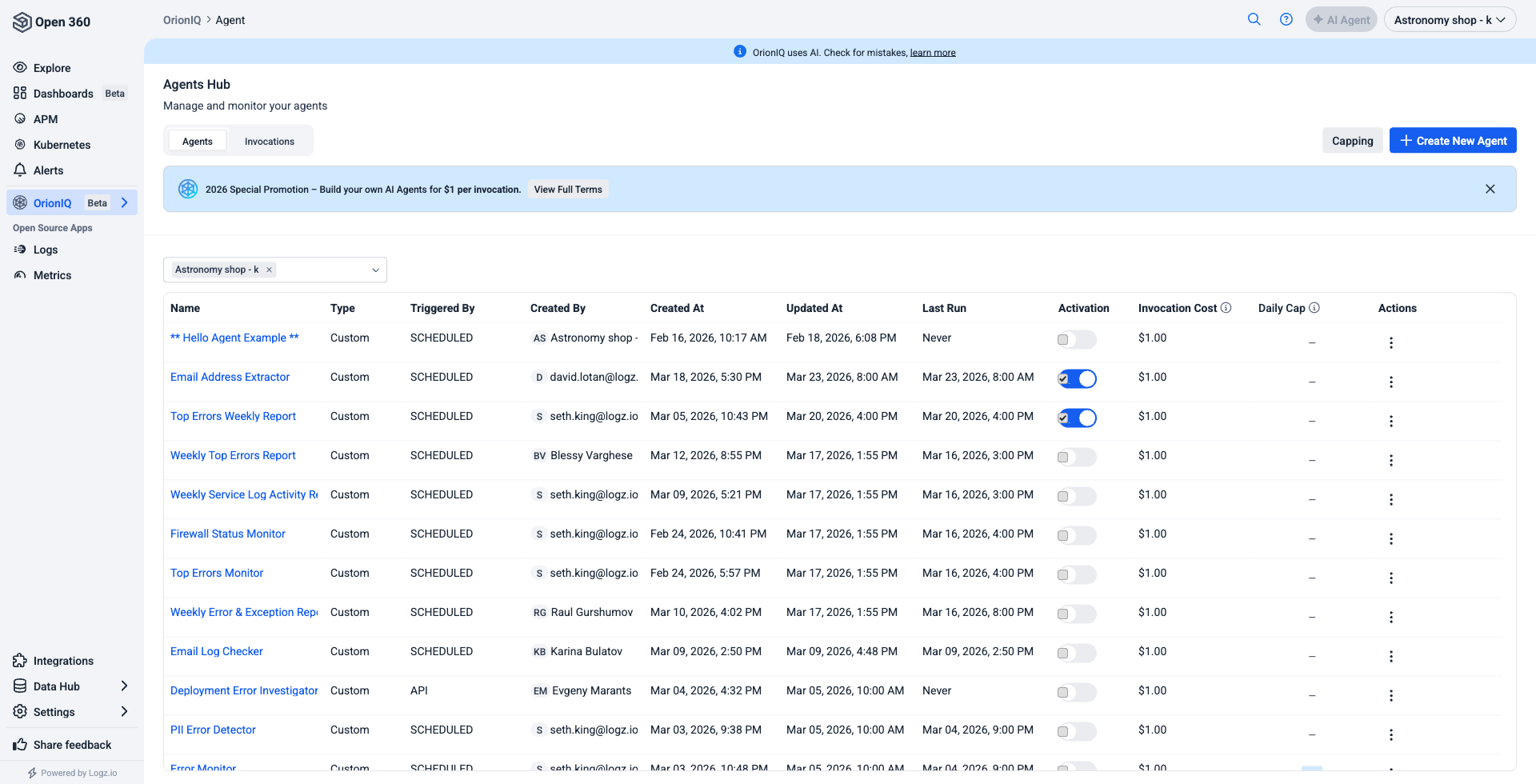
Agents tab
The Agents tab displays a list of all agents in your account. Each agent row includes the following information:
| Column | Description |
|---|---|
| Name | The agent name. Click to open the agent's details. |
| Type | The agent type (for example, Custom). |
| Triggered By | How the agent is triggered (Scheduled, API, Deployment, or Alert). |
| Created By | The user who created the agent. |
| Created At | The date and time the agent was created. |
| Updated At | The date and time the agent was last modified. |
| Last Run | The date and time of the agent's most recent invocation. |
| Activation | Toggle to enable or disable the agent. |
| Invocation Cost | The cost per invocation. |
| Daily Cap | The maximum number of invocations allowed per day. |
| Actions | Additional actions available for the agent. |
You can filter agents by account using the account selector at the top of the list.
To create a new agent directly from this page, click + Create New Agent in the top right corner.
Capping
Click the Capping button to manage invocation limits across your agents. This helps you control costs and prevent agents from exceeding your usage budget.
Invocations tab
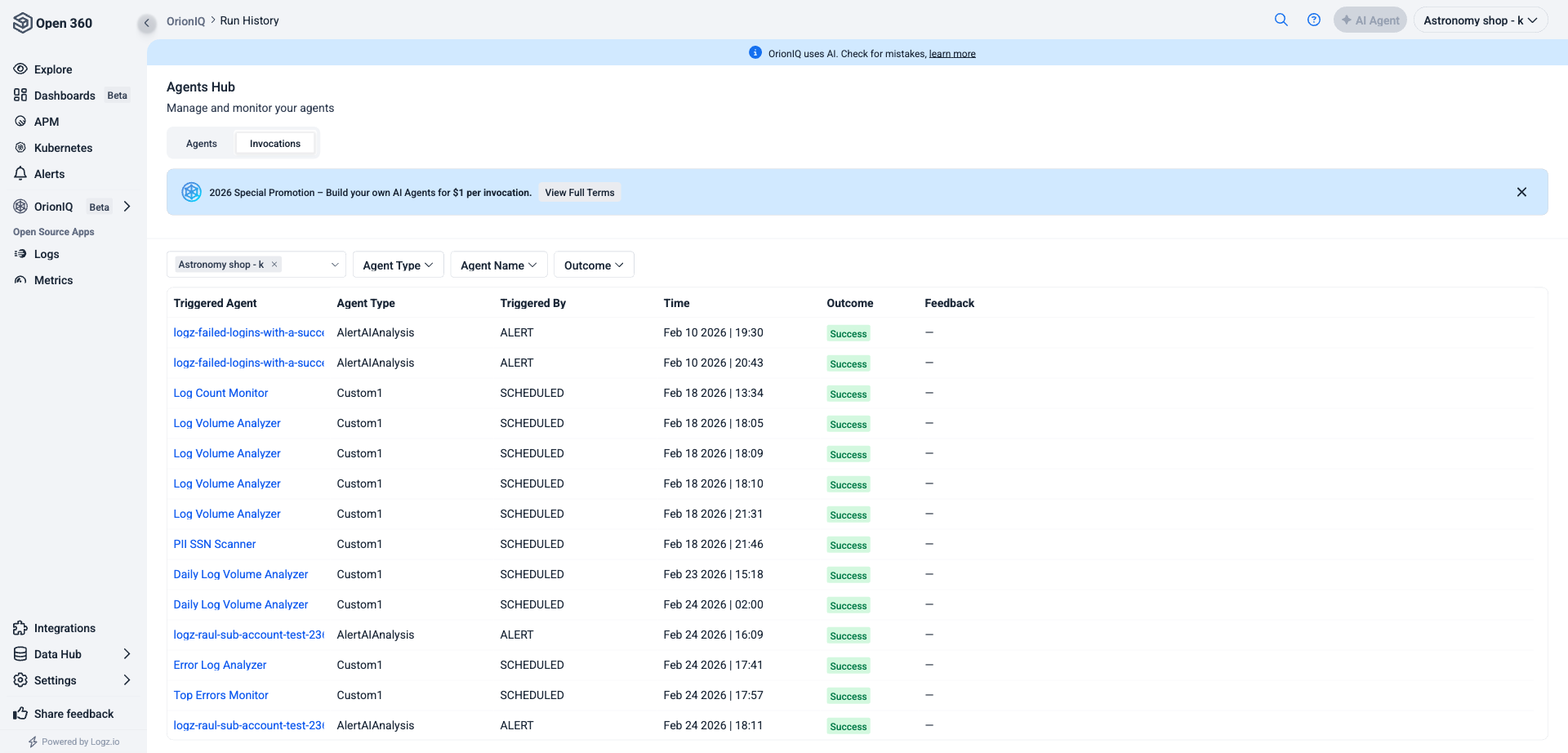
The Invocations tab displays the run history for all agents. Each row represents a single invocation and includes the agent name, type, trigger method, who created it, the execution time, and the outcome (for example, Success).
Click on any invocation to open the Agent Invocation Details panel, which contains three tabs:
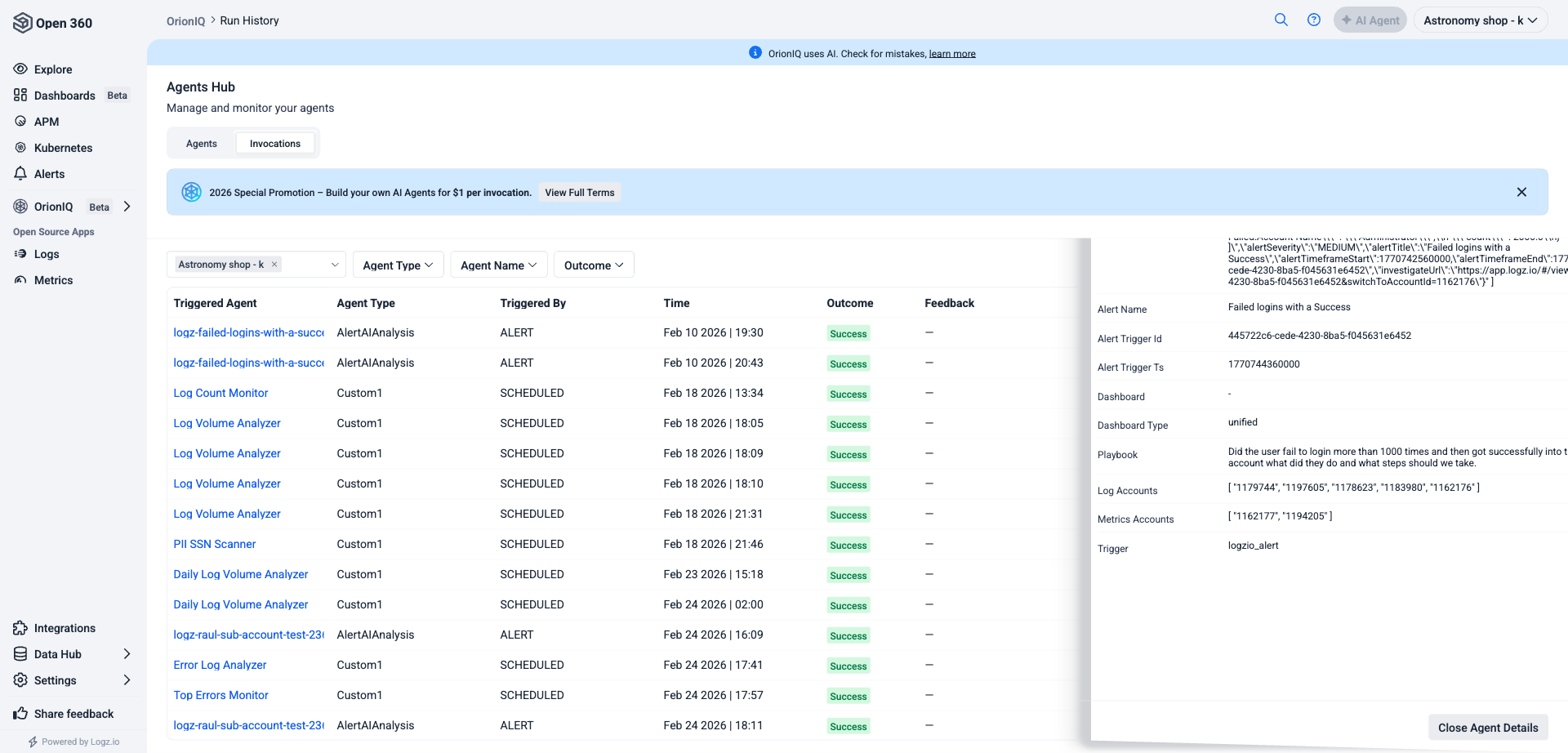
Input
Shows the agent's specification (the instructions and guidelines provided to the agent) and the context used for the invocation, including filters and account information.
Analysis
Displays the step-by-step reasoning the AI performed during the invocation. Each step is labeled as either an AI step (the agent's reasoning) or a Tool step (an action the agent took, such as querying logs). Click on any step to expand its details.
Output
Shows the final analysis report generated by the agent. This may include findings such as detected PII, suspicious events, log anomalies, volume trends, and structured data tables. The output is formatted as a readable report that you can review and act on.
Provide feedback
After reviewing an invocation's output, you can provide feedback on the accuracy and usefulness of the agent's results. Feedback helps improve AI performance over time and gives you a way to track agent reliability.
You can monitor feedback scores and coverage across all your agents from the Usage & Performance Dashboard.
Agents with low feedback coverage are harder to evaluate. Make it a habit to rate agent results regularly so you can identify which agents need their instructions refined.